
Kill Background Resource Hogs
Your laptop’s biggest enemy? Unchecked background processes. First move: hit Ctrl+Shift+Esc to open Task Manager. This is ground zero. Sort by CPU or Memory to see what’s eating your system alive. If it’s a browser with 42 tabs, no surprise there. But if it’s something unfamiliar, Google it before ending the task. Better safe than force quitting your audio driver mid Zoom call.
Next, tackle startup apps. In Task Manager, head to the Startup tab. Disable anything you don’t absolutely need to launch with your system. Spotify? Optional. Your antivirus? Leave it alone. The fewer apps fighting for attention when you boot up, the faster your machine stops wheezing.
These small moves turn your slow machine from sluggish to serviceable no downloads, no magic, just smarter resource control.
Clean Out Temporary Junk
Over time, your laptop accumulates a surprising amount of digital clutter temporary files, cached data, and system junk that chew through storage and slow things down. The good news? You can clear a lot of it out without adding new software.
Use Built In Cleanup Tools
Both Windows and macOS come with native cleanup options that help you reclaim valuable space:
Windows: Use the built in Disk Cleanup tool. Access it by typing “Disk Cleanup” into the Start menu. Select the drive you want to clean, and let it identify files to remove including system cache, old updates, and temporary files.
Mac: Head to Apple Menu > About This Mac > Storage > Manage. Here, you’ll find recommendations and options for deleting temporary and unneeded files.
Clear Your Browser Cache & Other System Junk
Beyond operating system clutter, browsers and apps generate piles of temporary data:
Clear your browser cache, cookies, and history (especially if you use multiple browsers).
Locate and delete temporary files, crash reports, and log files that aren’t serving any useful purpose.
Use built in browser settings or system utilities to execute these cleanups safely.
Make Maintenance a Habit
A one time sweep helps, but regular cleanups make a lasting performance difference.
Set a monthly reminder to perform manual cleanouts.
Check downloads, temp folders, and recycle bins you’d be surprised how much accumulates.
Routine maintenance keeps your laptop lean and running smoothly no extras or upgrades required.
Tame Your Browser
Your web browser might be the biggest hidden drag on your laptop’s performance. With heavy tabs, hidden extensions, and unused features running in the background, even a single browsing session can slow things down considerably.
Limit Open Tabs
Every open tab consumes memory (RAM), and having too many open at once can bring even a decent machine to a crawl.
Prioritize only the tabs you’re actively using
Use bookmark folders to temporarily save tabs for later
Consider tab manager extensions that suspend idle tabs automatically
Uninstall Unused Extensions
Browser extensions can be useful but often, they quietly run in the background, using up system resources.
Audit your current extensions
Remove anything you don’t use regularly
Disable others temporarily to test performance improvement
Enable Hardware Acceleration
Most modern browsers include a setting that offloads complex tasks (like video playback or animations) to your hardware,
lightening the load on your CPU.
Check your browser settings under “Performance” or “System”
Enable hardware acceleration if it’s not already active
Restart the browser to apply changes
Optimizing your browser can free up a surprising amount of speed without needing to touch other parts of your computer.
Declutter Your Desktop
If your desktop looks like a junk drawer exploded, it’s time to clean up. A messy desktop isn’t just an eyesore it can actually slow down your system, especially during boot. That’s because every file and icon on your desktop has to be loaded when your computer starts. Multiply that by dozens or even hundreds of icons, and things crawl.
Move old downloads, random screenshots, and scattered documents into folders or off the desktop entirely. Create a simple structure that makes sense one folder for work, one for personal, maybe one for stuff you’re still deciding on. The goal is minimal clutter, faster access, and better performance.
Keeping your desktop lean makes a real difference. You’ll boot up faster and work more efficiently without the digital noise.
Update Your System and Drivers
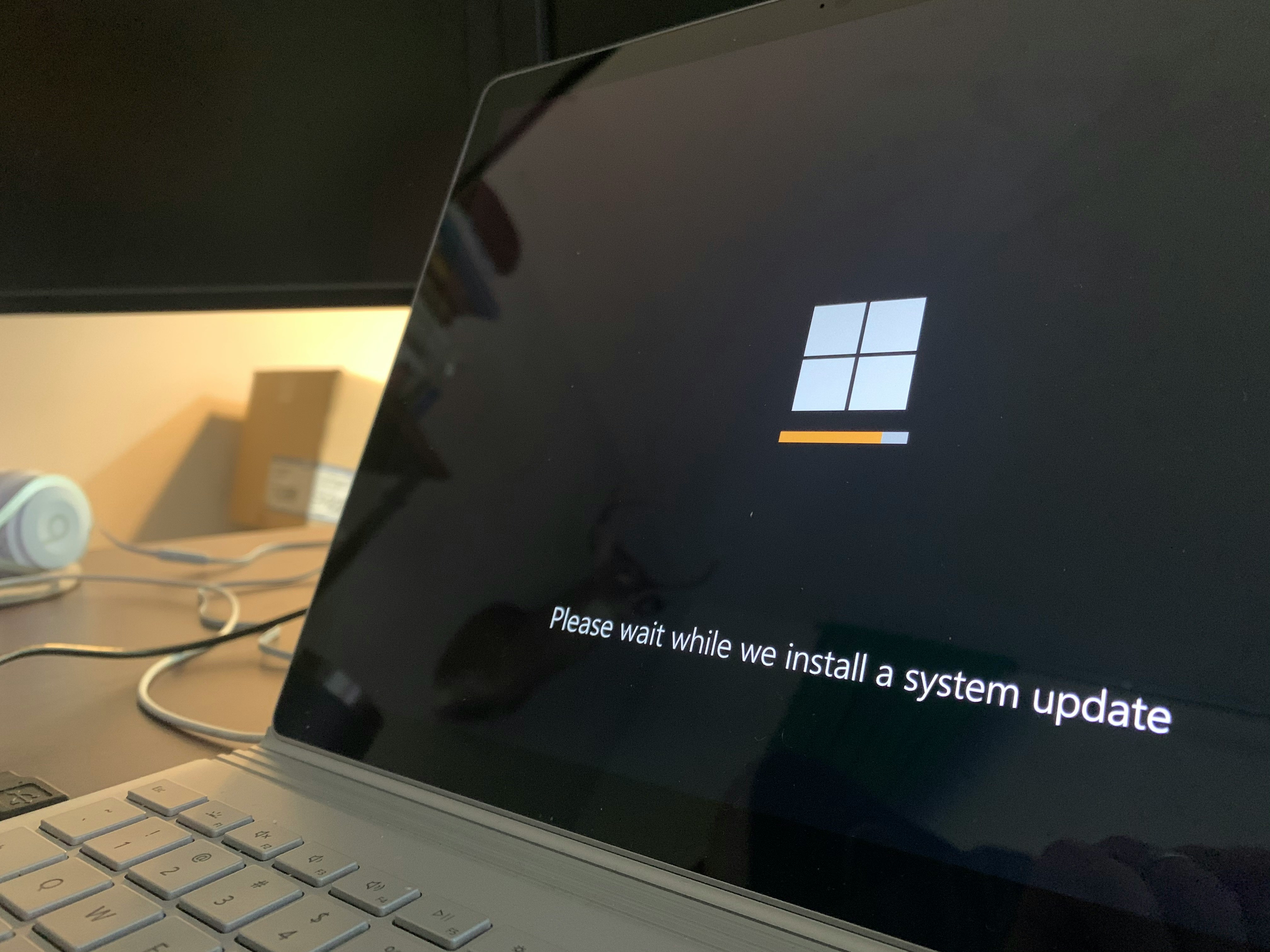
One of the easiest ways to boost your laptop’s speed? Keep your system and drivers up to date. Software patches often include behind the scenes improvements that optimize how your machine runs faster boot times, smoother graphics, fewer crashes.
Outdated drivers can quietly drag your system down. If your display starts flickering, mouse feels laggy, or apps start freezing more than usual, this might be why. Drivers are like quiet middlemen between your hardware and software when they’re out of sync, things break down.
Fix is simple: open your system settings, hunt down the update section, and let it do its job. Don’t put this off. Let the laptop catch up before you do more drastic cleanups.
Turn Off Visual Effects
Fancy animations and visual flourishes might look nice, but they can seriously drag down system performance especially on older machines. If things are feeling sluggish, switching to a more minimal graphics mode can give your laptop a noticeable boost.
On Windows, head to System > Performance settings and choose the option to “Adjust for best performance.” This will disable unnecessary effects like fade ins, window animations, and shadows. It doesn’t make your laptop look cooler, but it does make it work faster and that’s what counts.
If you’re running other operating systems, dig into their accessibility or performance settings to find similar graphics toggles. Less eye candy, more speed. Simple tweak, solid payoff.
Restart More Often
Sometimes the simplest fixes are the most ignored. A reboot clears your computer’s memory, shuts down bloated background processes, and gives your system a clean slate. If you’re running for days or weeks without restarting, things build up behind the scenes: apps hold onto RAM, updates stall, and sluggishness creeps in.
A quick restart flushes all that out. It’s fast, free, and doesn’t require installing anything. Build it into your routine: end of the day, mid week reset, whatever works. Don’t wait for your machine to freeze before giving it a fresh start. It’s basic upkeep and it works.
Bonus Tip: Go Minimal
The fastest laptops aren’t always the newest they’re often just the cleanest. Start by uninstalling anything you don’t absolutely need. That random photo editor you downloaded two years ago and never opened? Gone. Especially watch out for freemium software. Many of these apps run sneaky background processes that chew up memory and slow things down, even when you’re not using them.
When in doubt, less is more. The goal is a lean, purposeful machine that runs what you actually use and nothing else.
For more ways to simplify your digital life, check out these simple tech life hacks.
Final Notes
No fancy tools. No shady downloads. No need to spend a cent. Speeding up your laptop comes down to awareness, not upgrades. Small adjustments like clearing your cache, closing extra tabs, or ditching those startup freeloaders stack up fast.
Think of it like brushing your teeth: simple digital hygiene keeps things running smooth. When your laptop isn’t bogged down by clutter or background noise, it performs better. Period.
Stay lean. Stay intentional. And if you want more easy ways to cut tech stress, check out these simple tech life hacks.

 Ask Sharone Phillipssond how they got into emerging technology overview and you'll probably get a longer answer than you expected. The short version: Sharone started doing it, got genuinely hooked, and at some point realized they had accumulated enough hard-won knowledge that it would be a waste not to share it. So they started writing.
What makes Sharone worth reading is that they skips the obvious stuff. Nobody needs another surface-level take on Emerging Technology Overview, Gadget Reviews, Software Development Insights. What readers actually want is the nuance — the part that only becomes clear after you've made a few mistakes and figured out why. That's the territory Sharone operates in. The writing is direct, occasionally blunt, and always built around what's actually true rather than what sounds good in an article. They has little patience for filler, which means they's pieces tend to be denser with real information than the average post on the same subject.
Sharone doesn't write to impress anyone. They writes because they has things to say that they genuinely thinks people should hear. That motivation — basic as it sounds — produces something noticeably different from content written for clicks or word count. Readers pick up on it. The comments on Sharone's work tend to reflect that.
Ask Sharone Phillipssond how they got into emerging technology overview and you'll probably get a longer answer than you expected. The short version: Sharone started doing it, got genuinely hooked, and at some point realized they had accumulated enough hard-won knowledge that it would be a waste not to share it. So they started writing.
What makes Sharone worth reading is that they skips the obvious stuff. Nobody needs another surface-level take on Emerging Technology Overview, Gadget Reviews, Software Development Insights. What readers actually want is the nuance — the part that only becomes clear after you've made a few mistakes and figured out why. That's the territory Sharone operates in. The writing is direct, occasionally blunt, and always built around what's actually true rather than what sounds good in an article. They has little patience for filler, which means they's pieces tend to be denser with real information than the average post on the same subject.
Sharone doesn't write to impress anyone. They writes because they has things to say that they genuinely thinks people should hear. That motivation — basic as it sounds — produces something noticeably different from content written for clicks or word count. Readers pick up on it. The comments on Sharone's work tend to reflect that.